Mobile-friendly Full-Page Scrolling with jQuery Vertical Scroll Plugin
| File Size: | 311 KB |
|---|---|
| Views Total: | 358 |
| Last Update: | |
| Publish Date: | |
| Official Website: | Go to website |
| License: | MIT |
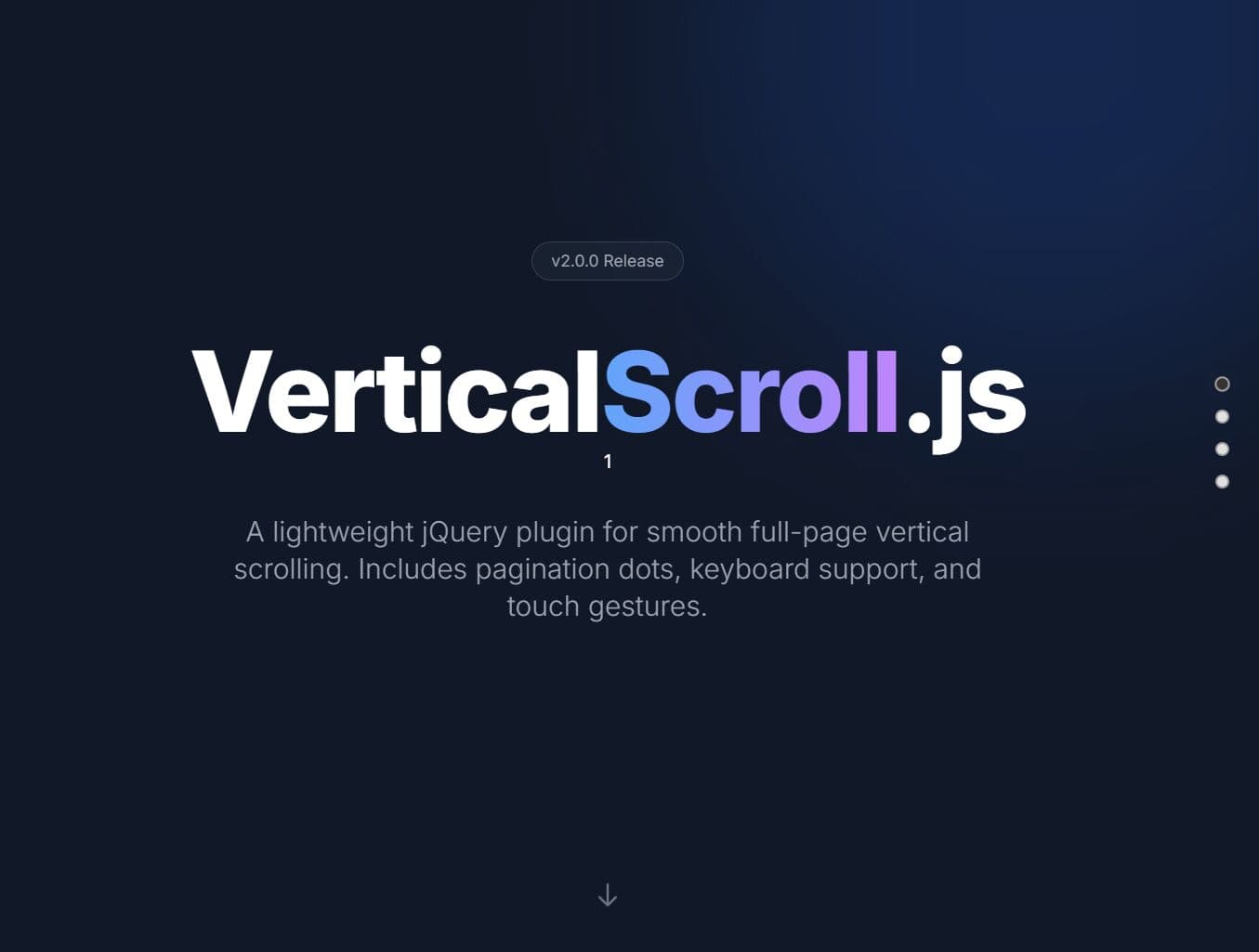
jQuery Vertical Scroll is a lightweight, accessible, mobile-friendly jQuery one-page scrolling plugin designed for single-page applications, SaaS landing pages, and presentation/portfolio websites.
It supports mouse wheel navigation, keyboard controls, touch gestures, and includes built-in pagination dots with multiple theme options.
Features:
- Navigation: Navigate between pages (fullscreen sections) with mouse wheel, keyboard arrows, Page Up/Down, Home/End keys, and touch swipes on mobile devices.
- Pagination: Dot navigation with tooltips and customizable positioning on the left or right side.
- Themes: Choose from default, light, dark, or minimal themes. You can also customize using CSS variables.
- Accessibility: Full ARIA support, keyboard navigation, focus management, and respects prefers-reduced-motion media queries.
- Auto-Scroll Mode: Optional automatic section cycling with configurable intervals and pause-on-hover functionality.
- Mobile-friendly: Automatically disables below a configurable breakpoint. The container becomes normally scrollable on small screens.
- Highly Customizable: 25+ configuration options, 12+ methods, and 6 custom events for complete control.
- Promise-Based Navigation: All navigation methods return jQuery Deferred promises for async handling.
See It In Action:
How To Use It:
1. Download the jQuery Vertical Scroll plugin manually or install it with NPM.
# NPM
$ npm install jquery.verticalscroll
2. Load the required JavaScript and CSS files in the document.
<link rel="stylesheet" href="/dist/css/jquery.verticalScroll.min.css">
<script src="/path/to/cdn/jquery.min.js"></script>
<script src="/dist/js/jquery.verticalScroll.min.js"></script>
3. Add content sections as 'pages' to the document. The data-vs-label attribute is used to generate the tooltip text for the pagination dots.
<div id="page">
  <section data-vs-label="jquery">
    <h1>jQuery</h1>
  </section>
  <section data-vs-label="Script">
    <h1>Script</h1>
  </section>
  <section data-vs-label="Net">
    <h1>Net</h1>
  </section>
  ...
</div>
4. The plugin requires the container and sections to have defined heights. Usually, this means 100vh.
/* Ensure the body takes up full height */
html, body {
  margin: 0;
  padding: 0;
  height: 100%;
}

/* The container */
#page {
  height: 100vh;
  overflow: hidden; /* Prevents native scrollbars */
}

/* Individual sections */
section {
  height: 100vh;
  display: flex;
  align-items: center;
  justify-content: center;
}
5. Initialize the plugin with default settings.
$(document).ready(function() {
  $('#page').verticalScroll({
    // options here
  });
});
6. Full plugin options.
selector: CSS selector for section elements within your containerpagination: Show or hide the dot navigationpaginationPosition: Place dots on left or right sidepaginationOffset: Distance from screen edge in pixelsanimationDuration: How long the scroll animation takes in millisecondseasing: jQuery easing function name (swing, linear, or custom easing)scrollThreshold: Minimum mouse wheel delta required to trigger scrolltouchThreshold: Minimum swipe distance required to trigger scrollmouseWheel: Enable or disable mouse wheel scrollingkeyboard: Enable or disable keyboard navigationtouch: Enable or disable touch/swipe gesturesloop: When true, scrolling past last section returns to firstautoScroll: Automatically cycle through sectionsautoScrollInterval: Time between auto-scroll transitions in millisecondspauseOnHover: Pause auto-scrolling when mouse hovers over containerariaLabels: Add accessibility attributes for screen readersfocusOnSection: Move keyboard focus to section after navigationresponsive: Enable responsive behavior at mobile breakpointmobileBreakpoint: Screen width below which plugin disables itselftheme: Name of built-in theme to useonInit: Callback fired when plugin initializesonDestroy: Callback fired when plugin is destroyedonBeforeScroll: Callback fired before scroll animation startsonAfterScroll: Callback fired after scroll animation completesonSectionChange: Callback fired when active section changesonResize: Callback fired when window resizes and plugin enables/disables
$('#page').verticalScroll({

  // Selectors
  selector: 'section',

  // Navigation
  pagination: true,
  paginationPosition: 'right',
  paginationOffset: 20,

  // Scrolling behavior
  animationDuration: 800,
  easing: 'swing',
  scrollThreshold: 50,
  touchThreshold: 50,

  // Input methods
  mouseWheel: true,
  keyboard: true,
  touch: true,

  // Behavior
  loop: false,
  autoScroll: false,
  autoScrollInterval: 5000,
  pauseOnHover: true,

  // Accessibility
  ariaLabels: true,
  focusOnSection: true,

  // Responsive
  responsive: true,
  mobileBreakpoint: 768,

  // Theming
  theme: 'default',

  // Callbacks
  onInit: null,
  onDestroy: null,
  onBeforeScroll: null,
  onAfterScroll: null,
  onSectionChange: null,
  onResize: null

});
7. API methods.
// Navigate to section by index (0-based)
$('#page').verticalScroll('scrollToSection', 2);

// Navigate to section by ID attribute
$('#page').verticalScroll('scrollToId', 'contact');

// Navigate to next section
$('#page').verticalScroll('next');

// Navigate to previous section
$('#page').verticalScroll('prev');

/ Get current active section index (returns number)
var index = $('#page').verticalScroll('getCurrentIndex');

// Get current active section as jQuery object
var $section = $('#page').verticalScroll('getCurrentSection');

// Get all sections as jQuery collection
var $sections = $('#page').verticalScroll('getSections');

// Get total number of sections
var count = $('#page').verticalScroll('getSectionCount');

/ Enable the plugin
$('#page').verticalScroll('enable');

// Disable the plugin (allows normal scrolling)
$('#page').verticalScroll('disable');

// Refresh plugin (recalculate section positions)
$('#page').verticalScroll('refresh');

// Update plugin options after initialization
$('#page').verticalScroll('setOptions', {
  // options here
});

// Destroy plugin and remove all bindings
$('#page').verticalScroll('destroy');
8. The plugin triggers custom events on the container element. You can listen to these to synchronize other animations.
$('#page')
.on('verticalscroll:init', function(e, index, $section) {
  // Triggered when the plugin is fully initialized
})
.on('verticalscroll:beforescroll', function(e, targetIndex, $targetSection, currentIndex) {
  // Triggered before animation starts.
  // Return false here to cancel the scroll.
})
.on('verticalscroll:afterscroll', function(e, index, $section, previousIndex) {
  // Triggered after animation completes
})
.on('verticalscroll:sectionchange', function(e, index, $section, previousIndex) {
  // Triggered when the active section updates
})
.on('verticalscroll:resize', function(e, isEnabled) {
  // Triggered on window resize
})
.on('verticalscroll:destroy', function() {
  // Triggered when the plugin is destroyed
});
Alternatives:
FAQs:
Q: Why doesn't the plugin work after I dynamically add or remove sections?
A: Call the refresh() method after modifying the DOM. This recalculates section positions and updates the pagination dots.
Q: How do I make the plugin work with existing scroll-triggered animations?
A: Use the onAfterScroll callback to trigger your animations after section navigation completes. You can also listen to the verticalscroll:afterscroll event. Avoid using scroll event listeners since the plugin prevents normal scrolling.
Q: How do I link to a specific section from a different page?
A: You can use the onInit callback. Check window.location.hash when the page loads. Then, call the scrollToId method to jump immediately to the correct section.
Q: Does this plugin support deep linking?
A: Yes. You can implement deep linking by updating the URL hash inside the onAfterScroll event.
Q: Is this plugin accessible for screen readers?
A: Yes. The plugin adds ARIA labels and manages focus. When a user navigates to a new section, the focus moves to that section.
Q: Why is the scroll too sensitive on my trackpad?
A: Trackpads generate momentum scroll events. You can adjust the scrollThreshold option in the configuration.
Changelog:
v2.2.1 (2026-05-11)
- Bugfixes
This awesome jQuery plugin is developed by vineethkrishnan. For more Advanced Usages, please check the demo page or visit the official website.