Minimalist Off-canvas Push Menu with jQuery and CSS3
| File Size: | 128 KB |
|---|---|
| Views Total: | 1852 |
| Last Update: | |
| Publish Date: | |
| Official Website: | Go to website |
| License: | MIT |
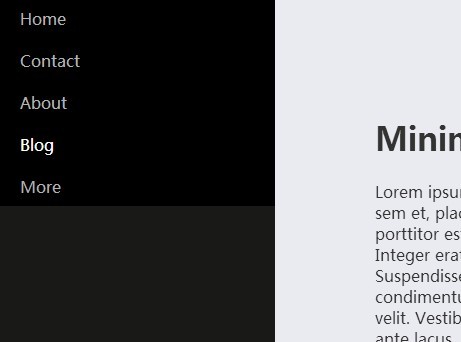
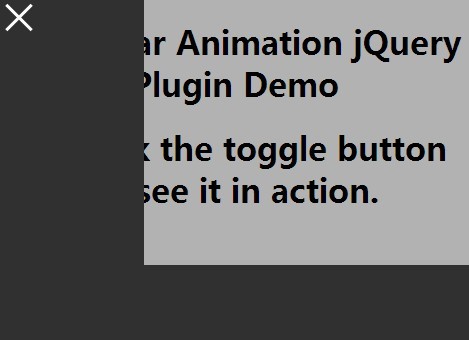
A simplest way to create a familiar off-canvas menu that pushes the entire site to the right side to reveal a hidden sidebar navigation. Based on CSS3 transitions & transforms and a little jQuery magic.
How to use it:
1. Create an off-canvas navigation with a toggle button on your document page.
<nav class="site-nav">
  <button class="site-nav-logo">Menu</button>
  <div class="site-nav-scrollable-container">
    <ul class="site-nav-list">
      <li> <a href="" class="site-nav-list-item-btn"> Home </a> </li>
      <li> <a href="" class="site-nav-list-item-btn"> Contact </a> </li>
      <li> <a href="" class="site-nav-list-item-btn"> About </a> </li>
      <li> <a href="" class="site-nav-list-item-btn"> Blog </a> </li>
      <li> <a href="" class="site-nav-list-item-btn"> More </a> </li>
    </ul>
  </div>
</nav>
2. Create a navigation overlay to overlay entire page when the navigation is opened.
<div class="site-nav-overlay"></div>
3. The core CSS/CSS3 for the off-canvas navigation.
.site-nav-logo {
  width: 44px;
  height: 44px;
  background: #478dcf;
  color: #000;
  position: absolute;
  top: 10px;
  left: 10px;
  border: 0;
  opacity: 1;
  -moz-transition: opacity .3s linear;
  -webkit-transition: opacity .3s linear;
  transition: opacity .3s linear;
}

.site-nav-drawer-open .site-nav-logo { display: none; }

.site-nav-transition .site-nav-logo { opacity: 0; }

.site-nav {
  position: absolute;
  left: 0;
  top: 0;
  bottom: 0;
  outline: 0;
  background-color: #191918;
}

.site-nav-scrollable-container {
  display: none;
  overflow: auto;
  height: 100%;
}

.site-nav-transition .site-nav-scrollable-container {
  display: block;
  width: 280px;
}

.site-nav-list-item-btn {
  color: #b3b3b1;
  display: block;
  padding: 0 25px;
  height: 42px;
  line-height: 45px;
  border: 0;
  background: black;
}

.site-nav-list-item-btn:hover {
  color: #fff;
  outline: 0;
}

.site-nav-overlay {
  display: none;
  position: absolute;
  left: 0;
  top: 0;
  right: 0;
  bottom: 0;
}

.site-nav-drawer-open .site-nav-overlay {
  left: 280px;
  z-index: 900;
  display: block;
}
4. Wrap the main content into a container.
<div class="container">
  ...
</div>
5. The required CSS/CSS3 styles for the main container.
.container {
  background: #EAEAF1;
  color: #333332;
  height: 100%;
  -webkit-transition: -webkit-transform .2s cubic-bezier(0.2, 0.3, 0.25, 0.9);
  -moz-transition: -moz-transform .2s cubic-bezier(0.2, 0.3, 0.25, 0.9);
  transition: transform .2s cubic-bezier(0.2, 0.3, 0.25, 0.9);
}

.site-nav-transition .container { position: fixed;}

.site-nav-drawer-open .container {
  -webkit-transform: translate3d(280px, 0, 0);
  -moz-transform: translate3d(280px, 0, 0);
  transform: translate3d(280px, 0, 0);
}
6. Load the needed jQuery JavaScript library in the document.
<script src="http://code.jquery.com/jquery-2.1.1.min.js"></script>
7. The JavaScript to active the off-canvas push menu.
var body=$('body');

$('.site-nav-logo').click(function(){
  body.addClass('site-nav-transition site-nav-drawer-open');
});

$('.site-nav-overlay').click(function(){
  body.removeClass('site-nav-drawer-open');
  setTimeout(function(){
    body.removeClass("site-nav-transition");
  },1300);
});
This awesome jQuery plugin is developed by adiljany. For more Advanced Usages, please check the demo page or visit the official website.