Clock Dial Time Picker for Bootstrap - jQuery bsTimepicker
| File Size: | 25.9 KB |
|---|---|
| Views Total: | 692 |
| Last Update: | |
| Publish Date: | |
| Official Website: | Go to website |
| License: | MIT |
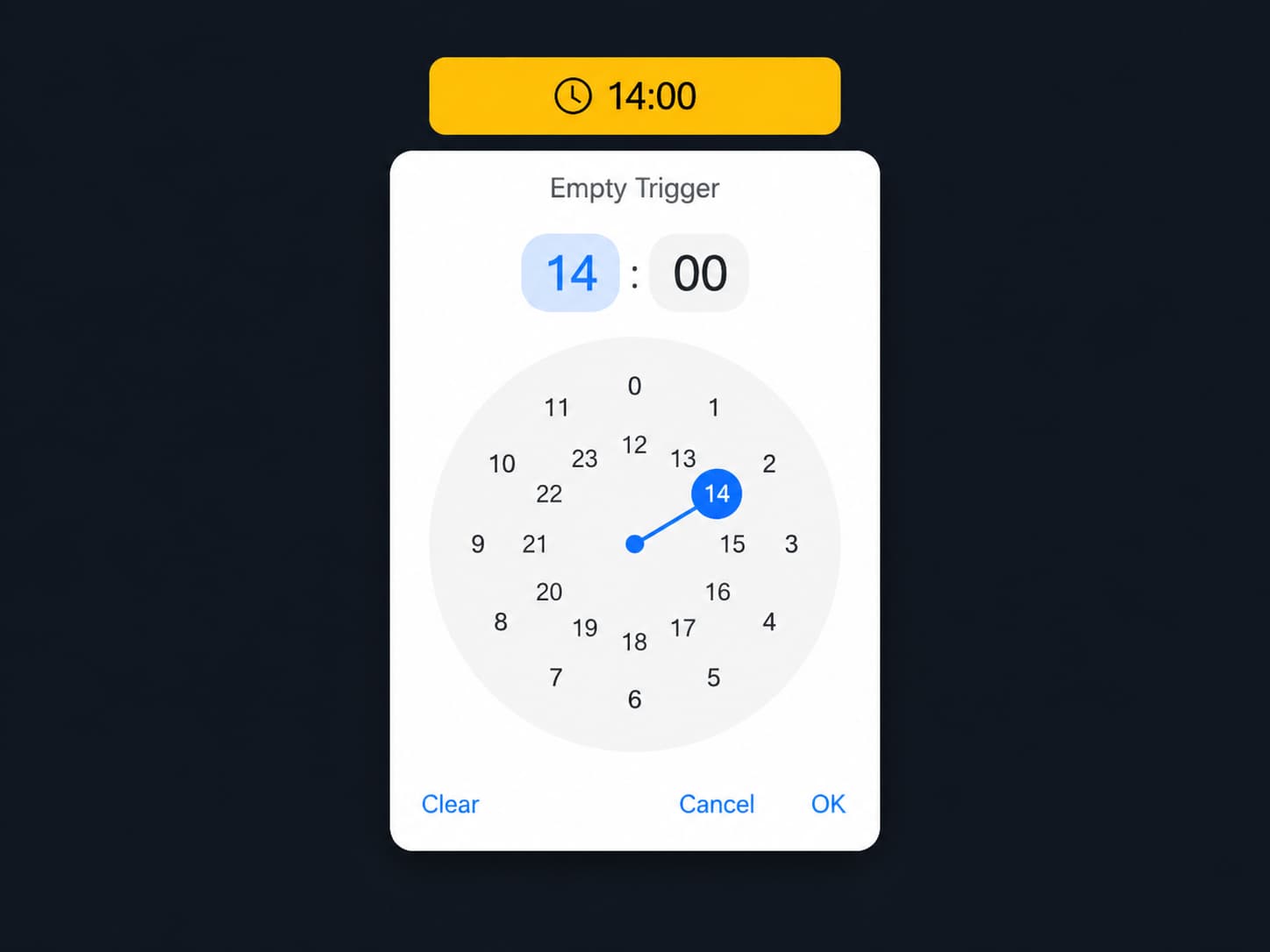
bsTimepicker is a jQuery/Bootstrap plugin that attaches a Bootstrap-styled time picker with a circular clock dial to any element on your page.
It works with Bootstrap 4.x and Bootstrap 5.x, uses the Bootstrap dropdown component for the picker panel, and supports both 12-hour and 24-hour time selection.
Features:
- 12-hour and 24-hour display modes, each with its own dial layout.
- Circular clock dial with mouse and touch support.
- Optional hidden input creation when initialized on a
div. - Database-ready value output in 24-hour
HH:mmformat. - Automatic state revert on cancel or outside click.
- Configurable trigger button class, width, and icon via Bootstrap Icon classes.
- Clear button in the picker footer with a customizable label.
- Auto-close option that fires immediately after the user selects minutes.
- Public API for programmatic show, hide, toggle, set, get, and clear operations.
How to use it:
1. Load the latest jQuery library, Bootstrap 4 or 5.x framework, Bootstrap Icons, and bsTimepicker plugin in the document.
<!-- Bootstrap CSS -->
<link rel="stylesheet" href="/path/to/cdn/bootstrap.min.css">

<!-- Bootstrap Icons (required for the default trigger and action button icons) -->
<link rel="stylesheet" href="/path/to/cdn/bootstrap-icons.css">

<!-- jQuery -->
<script src="/path/to/cdn/jquery.min.js"></script>

<!-- Bootstrap bundle — includes Popper.js for dropdown positioning -->
<script src="/path/to/cdn/bootstrap.bundle.min.js"></script>

<!-- bsTimepicker plugin -->
<script src="/path/to/dist/bs-timepicker.js"></script>
2. Initialize the time picker on the element you specify:
<!-- Standard text input with a pre-filled 24-hour time -->
<input type="text" id="meetingStart" value="09:00">

<!-- Input with a 12-hour pre-filled value -->
<input type="text" id="reminderTime" value="10:30 AM">

<!-- When using a div, the trigger renders inside it -->
<div id="shiftStart"></div>
// The dial shows 0-11 (outer) and 12-23 (inner)
$("#meetingStart").bsTimepicker({
  format: "24h"
});

// An AM/PM toggle appears beside the dial header
$("#reminderTime").bsTimepicker({
  format: "12h"
});

// The plugin creates a hidden input named "shift_start"
$("#shiftStart").bsTimepicker({
  format:       "24h",
  defaultTime:  "07:30",          // Pre-select 7:30 AM on load
  nameField:    "shift_start",    // Name of the hidden input for form post
  btnClass:     "btn btn-primary",// Bootstrap class for the trigger button
  btnWidth:     "200px",          // Fixed width on the trigger
  btnEmptyText: "Pick a time"     // Placeholder when no time is selected
});
3. Customize the time picker with the following configuration options:
format(string): Controls the display mode for the dial and trigger. Accepts"24h"or"12h". Defaults to"24h".minuteInterval(string): Defines selectable minute steps. Accepts1,5,10, or15. Defaults to"5".defaultTime(string | Date | object | null): Sets the initial time when the source element has no existing value. Accepts"14:00","02:00 PM",new Date(), or{ hour24: 14, minute: 0 }. Defaults tonull.nameField(string | null): Name for the auto-generated hidden input. Applies only when the plugin runs on adiv. Defaults tonull.title(string | null): Optional label at the top of the dropdown panel. Passnullor""to suppress it. Defaults to"Select time".closeOnSelect(boolean): Closes the picker automatically after the user selects minutes. Useful on mobile where interactions should stay short. Defaults tofalse.btnClass(string): Bootstrap utility classes applied to the trigger button. Defaults to"btn btn-outline-secondary".btnWidth(string | null): Fixed CSS width for the trigger button, e.g."180px". Defaults tonull.btnEmptyText(string): Placeholder text in the trigger when no time is set. Defaults to"--:--".showClearButton(boolean): Shows a clear button in the picker footer. Defaults totrue.clearLabel(string): HTML or plain text for the clear button. Defaults to a small"Clear"span.icons(object): Bootstrap Icon class for the trigger button icon. Defaults to{ trigger: "bi bi-clock" }.okLabel(string): HTML or text for the confirm button. Defaults to a check icon combined with"OK".cancelLabel(string): HTML or text for the cancel button. Defaults to an X icon combined with"Cancel".
$("#meetingStart").bsTimepicker({
  format: "24h",
  minuteInterval: 5,
  defaultTime: null,
  nameField: null,
  title: "Select time",
  closeOnSelect: false,
  btnClass: "btn btn-outline-secondary",
  btnWidth: null,
  btnEmptyText: "--:--",
  showClearButton: true,
  icons: {
    trigger: "bi bi-clock"
  },
  clearLabel: '<span class="small">Clear</span>',
  okLabel: '<span class="small">OK</span>',
  cancelLabel: '<span class="small">Cancel</span>'
});
4. API methods:
// Initialize the plugin with options
$("#meetingStart").bsTimepicker({ format: "24h" });

// Get the current time as a structured object
// Returns: { hour24, minute, hour12, meridiem, formatted24, formatted12, formatted, isEmpty }
const timeData = $("#meetingStart").bsTimepicker("getTime");
console.log(timeData.formatted24); // e.g. "14:30"
console.log(timeData.formatted12); // e.g. "02:30 PM"

// Read the raw stored value as an HH:mm string, or null if empty
const rawValue = $("#meetingStart").bsTimepicker("val");
// Returns "14:30", "00:05", or null

// Write a value using an HH:mm string (does not fire change events)
$("#meetingStart").bsTimepicker("val", "16:45");

// Write a value using a 12-hour string
$("#meetingStart").bsTimepicker("val", "04:45 PM");

// Clear the stored value quietly (sets to null, restores placeholder)
$("#meetingStart").bsTimepicker("val", "");

// Set the time programmatically and fire all change events
$("#meetingStart").bsTimepicker("setTime", "11:00");
$("#meetingStart").bsTimepicker("setTime", "11:00 AM"); // 12h string also accepted

// Clear the value and fire change and clear events
$("#meetingStart").bsTimepicker("clear");

// Open the dropdown picker programmatically
$("#meetingStart").bsTimepicker("show");

// Close the dropdown picker programmatically
$("#meetingStart").bsTimepicker("hide");

// Toggle the dropdown open or closed
$("#meetingStart").bsTimepicker("toggle");

// Remove the plugin and all generated DOM nodes
$("#meetingStart").bsTimepicker("destroy");
5. Event hooks:
// Fires once after the plugin initializes
$("#meetingStart").on("init.bs.timepicker", function(e, data) {
  console.log("Ready", data);
});

// Fires when the dropdown begins to open
$("#meetingStart").on("show.bs.timepicker", function(e, data) {
  console.log("Opening", data);
});

// Fires after the dropdown is fully visible
$("#meetingStart").on("shown.bs.timepicker", function(e, data) {
  console.log("Open", data);
});

// Fires when the dropdown begins to close
$("#meetingStart").on("hide.bs.timepicker", function(e, data) {
  console.log("Closing", data);
});

// Fires after the dropdown is fully hidden
$("#meetingStart").on("hidden.bs.timepicker", function(e, data) {
  console.log("Closed", data);
});

// Fires when the selected time changes for any reason
$("#meetingStart").on("change.bs.timepicker", function(e, data) {
  console.log("Time changed:", data.formatted);
});

// Fires specifically when the hour portion changes
$("#meetingStart").on("changeHour.bs.timepicker", function(e, data) {
  console.log("Hour:", data.hour24);
});

// Fires specifically when the minute portion changes
$("#meetingStart").on("changeMinutes.bs.timepicker", function(e, data) {
  console.log("Minute:", data.minute);
});

// Fires when the user confirms a selection via OK, or setTime() runs
$("#meetingStart").on("timeChange.bsTimepicker", function(e, data) {
  const dbValue = data.formatted24; // safe to send to backend
  console.log("Confirmed:", dbValue);
});

// Fires when the user taps the clear button or clear() is called
$("#meetingStart").on("clear.bs.timepicker", function(e, data) {
  console.log("Cleared", data.isEmpty); // true
});
Alternatives:
- flatpickr: A lightweight datetime picker with no jQuery dependency.
- Tempus Dominus: A Bootstrap 5 native datetime picker.
- 10 Best Date And Time Picker JavaScript Plugins
FAQs:
Q: How do I read the time just before form submission?
A: Call val() on the element to get the "HH:mm" string, or null if the picker is empty. That value is safe to post directly to a backend TIME column. Use getTime() if you need the hour, minute, and meridiem as separate fields.
Q: Can I use this with a standard HTML form that posts to a server?
A: Yes. Initialize the plugin on a div and set nameField to the field name you want in the POST body. The plugin creates a hidden input with that name and keeps its value in sync. For an input-based setup, the original element carries the value as a hidden field automatically.
Q: Does the plugin support seconds?
A: The picker UI supports hours and minutes. The parser can read seconds from an input string, but the final state keeps only hours and minutes.
Changelog:
v1.0.6 (2026-05-27)
- Support for input.form-control inside Bootstrap form-floating containers.
- In form-floating, the visible input now stays the trigger field while the submitted 24h raw value is written to a generated hidden input.
- New minuteInterval option for selectable minute steps of 1, 5, 10, or 15 minutes.
- Drag support for the active dial pointer so hours and minutes can be adjusted by dragging the selected circle.
- Minute dial rendering, click handling, and pointer handling now all use the configured minute interval.
- Bugfixes.
v1.0.5 (2026-05-13)
- Added New `minuteInterval` option for selectable minute steps of `1`, `5`, `10`, or `15` minutes.
- Added Drag support for the active dial pointer so hours and minutes can be adjusted by dragging the selected circle.
- Changed Minute dial rendering, click handling, and pointer handling now all use the configured minute interval.
This awesome jQuery plugin is developed by ThomasDev-de. For more Advanced Usages, please check the demo page or visit the official website.