jQuery Dual List Box with Search and Groups - FilterSelect
| File Size: | 14.8 KB |
|---|---|
| Views Total: | 81 |
| Last Update: | |
| Publish Date: | |
| Official Website: | Go to website |
| License: | MIT |
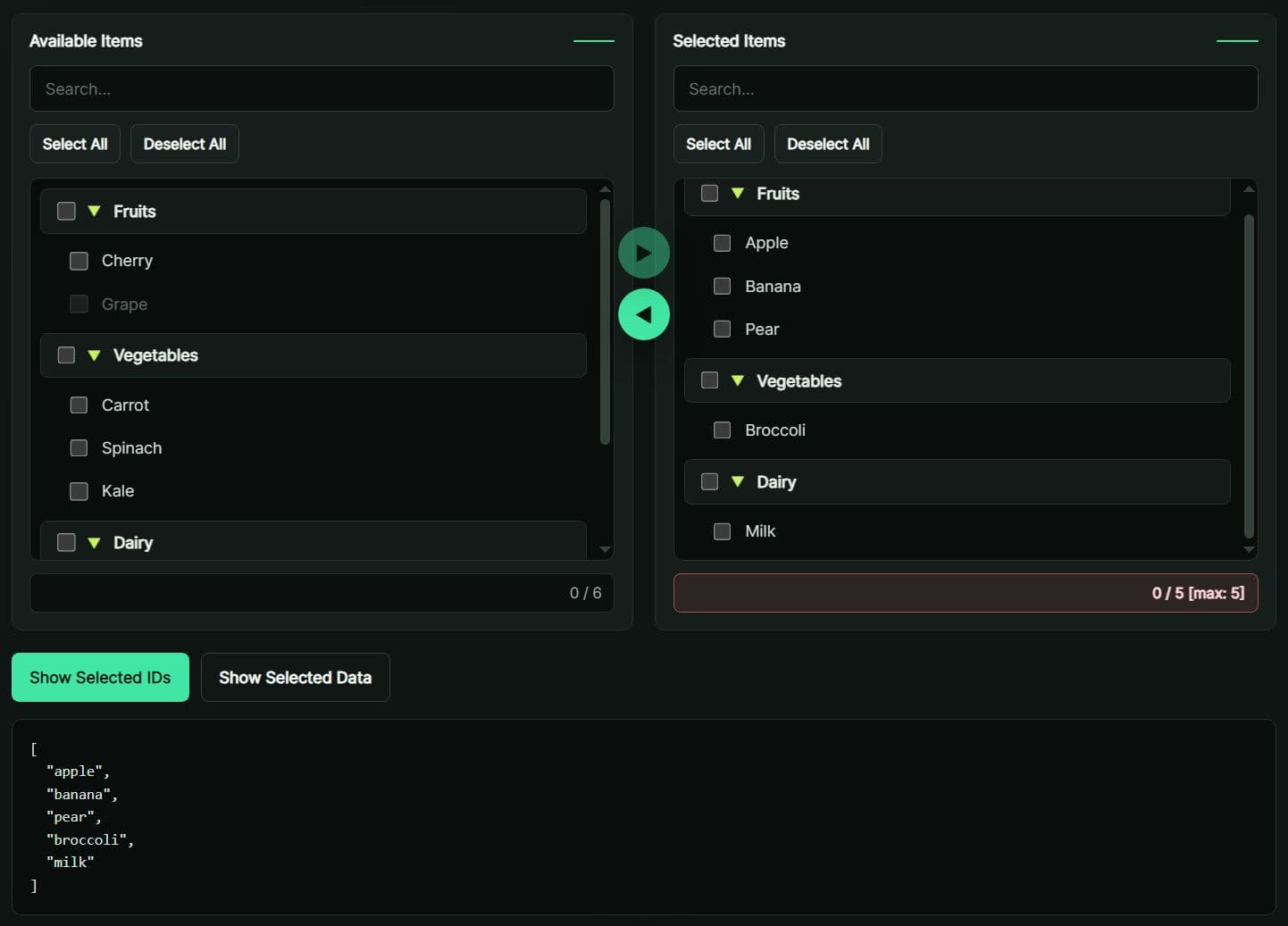
FilterSelect is a tiny jQuery dual list box plugin that creates grouped multiple select UIs with search, move controls, and selected item limits.
You can use the plugin to build a dual list selector for role assignment, product categories, user permissions, admin filters, or any form screen where a plain <select multiple> feels too cramped.
It's ideal for jQuery-based websites/webapps and admin dashboards that need a quick transfer list pattern. Each item belongs to a group, each group can collapse, and each panel has its own search field, select controls, and status bar.
Alternatives:
Features:
- Two-panel selector for large option lists.
- Groups items under collapsible category headers.
- Filters options inside each panel through local search.
- Moves checked items between available and selected panels.
- Limits the selected list to a fixed item count.
- Loads grouped JSON data from a remote endpoint.
- Marks locked options as unavailable for selection.
- Shows checked and total item counts in each panel.
Use Cases:
- Assign user permissions from groups like Administration, Content, and Reports.
- Pick products from a catalog organized by department for a bulk export form.
- Select team members from multiple office locations for a meeting scheduler.
- Build a survey setup where participants choose topics across subject categories.
How to use it:
1. Download the plugin and reference it locally.
<script src="/path/to/cdn/jquery.min.js"></script>
<script src="/path/to/dist/filterselect.min.js"></script>
2. Create an empty DIV container for the dual list box.
<div id="permissionSelector"></div>
3. Create a basic dual list box from a flat data array with one group and a few items.
$('#permissionSelector').filterSelect({
  // The data array defines groups and their children
  data: [
    {
      group: "Access Levels",
      children: [
        { id: "read",    label: "Read",    selected: false, disabled: false },
        { id: "write",   label: "Write",   selected: true,  disabled: false },
        { id: "admin",   label: "Admin",   selected: false, disabled: true  }
      ]
    }
  ],
  leftTitle:  'Available',  // Title above the left panel
  rightTitle: 'Active'      // Title above the right panel
});
4. FilterSelect generates its own panel markup inside the selected container. Add your project CSS around the generated classes if you need a custom layout, spacing, or warning color.
/* Basic layout for the generated dual list panels */
.fs-container {
  display: flex;
  gap: 16px;
  align-items: stretch;
}

/* Style each generated panel */
.fs-panel {
  width: 280px;
  border: 1px solid #d6d6d6;
  border-radius: 8px;
  padding: 12px;
}

/* Highlight the status bar after the selected limit reaches its cap */
.fs-status-warning {
  color: #b00020;
  font-weight: 600;
}
5. Use multiple groups when your data has natural categories. Set maxSelected to cap how many items can live in the right panel. The move-right button disables automatically when the cap is reached, and the status bar switches to the fs-status-warning CSS class.
$('#reportBuilder').filterSelect({
  data: [
    {
      group: "User Metrics",
      children: [
        { id: "dau",  label: "Daily Active Users",   selected: true,  disabled: false },
        { id: "mau",  label: "Monthly Active Users",  selected: false, disabled: false },
        { id: "churn",label: "Churn Rate",            selected: false, disabled: false }
      ]
    },
    {
      group: "Revenue Metrics",
      children: [
        { id: "mrr",  label: "Monthly Recurring Revenue", selected: true,  disabled: false },
        { id: "arr",  label: "Annual Recurring Revenue",  selected: false, disabled: false },
        { id: "ltv",  label: "Customer Lifetime Value",   selected: false, disabled: false }
      ]
    }
  ],
  leftTitle:   'All Metrics',     // Left panel header
  rightTitle:  'Report Columns',  // Right panel header
  maxSelected: 4                  // Block moves once 4 items are in the right panel
});
6. Use AJAX mode when your option list comes from a database, API route, or admin endpoint. The server response must be a valid JSON array matching the group-children format shown in the data format reference below. The plugin renders an empty widget if the request fails and logs a console.warn message with the status text.
$('#productSelector').filterSelect({
  // A URL string triggers AJAX loading
  data: '/api/products/categories',

  // These become ?department=electronics&active=1 in the request URL
  ajaxParams: {
    department: 'electronics',
    active: 1
  },

  leftTitle:  'Catalog',
  rightTitle:  'Cart Selection',
  maxSelected: 10
});
7. All configuration options.
data(Array or String): The item data. Pass a plain JavaScript array for static data or a URL string to load data via AJAX GET. Defaults to[].leftTitle(String): The heading text above the left (available) panel. Defaults to'Available'.rightTitle(String): The heading text above the right (selected) panel. Defaults to'Selected'.maxSelected(Number or null): The maximum number of items the right panel can hold. Set tonullfor no limit. Defaults tonull.ajaxParams(Object): Key-value pairs appended as query string parameters whendatais a URL string. Defaults to{}.
8. Data Format Reference. Each element in the `data` array must be a group object:
[
  {
    group: "Group Label",     // String: the group heading displayed in both panels
    children: [
      {
        id:       "unique-key",  // String: internal identifier, used by API methods
        label:    "Display Name",// String: text shown in the list
        selected: false,         // Boolean: true = starts in the right panel
        disabled: false          // Boolean: true = locked, not selectable or movable
      }
    ]
  }
]
9. API methods:
// Returns all right-panel items as full objects.
// Each object has: id, label, group, selected (true), disabled.
// Useful when you need metadata about each selection.
var data = $('#mySelector').filterSelect('getSelectedData');

// Returns a flat array of ID strings for all right-panel items.
// Useful for form fields, POST bodies, or localStorage.
var ids = $('#mySelector').filterSelect('getSelectedIds');
FAQs:
Q: Can I load options from a server?
A: Yes. Set data to a URL string and pass extra query values through ajaxParams. The endpoint must return an array of grouped items.
Q: Why does getSelectedIds() return unchecked items?
A: The method returns every item in the right panel. Checkbox state only controls move actions.
Q: How do I save selected values in a normal HTML form?
A: Read getSelectedIds() during submit and write the result into a hidden input. Submit the hidden input with the rest of the form.
Q: What happens when the selected limit is reached?
A: The right status bar gets the warning class, and the move-right button becomes disabled. A checked move from the left panel stops when it would exceed the limit.
Q: How do I pre-populate the right panel with existing user selections?
A: Set selected: true on any item in the data array before initialization. The plugin reads that flag at render time and places those items in the right panel automatically.
This awesome jQuery plugin is developed by dev-lop77. For more Advanced Usages, please check the demo page or visit the official website.