Multiselect Dropdown with Live Search and Tag Display - jQuery InterActiveMultiSelect
| File Size: | 21.6 MB |
|---|---|
| Views Total: | 467 |
| Last Update: | |
| Publish Date: | |
| Official Website: | Go to website |
| License: | MIT |
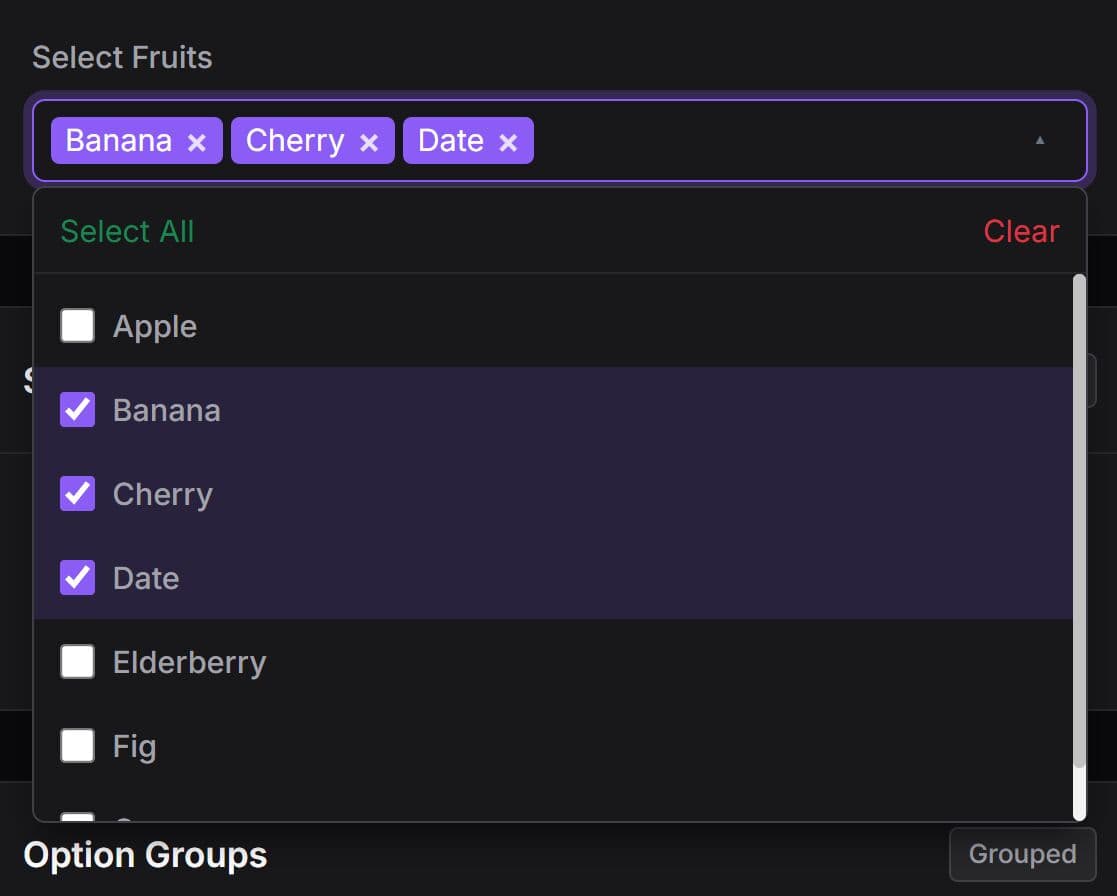
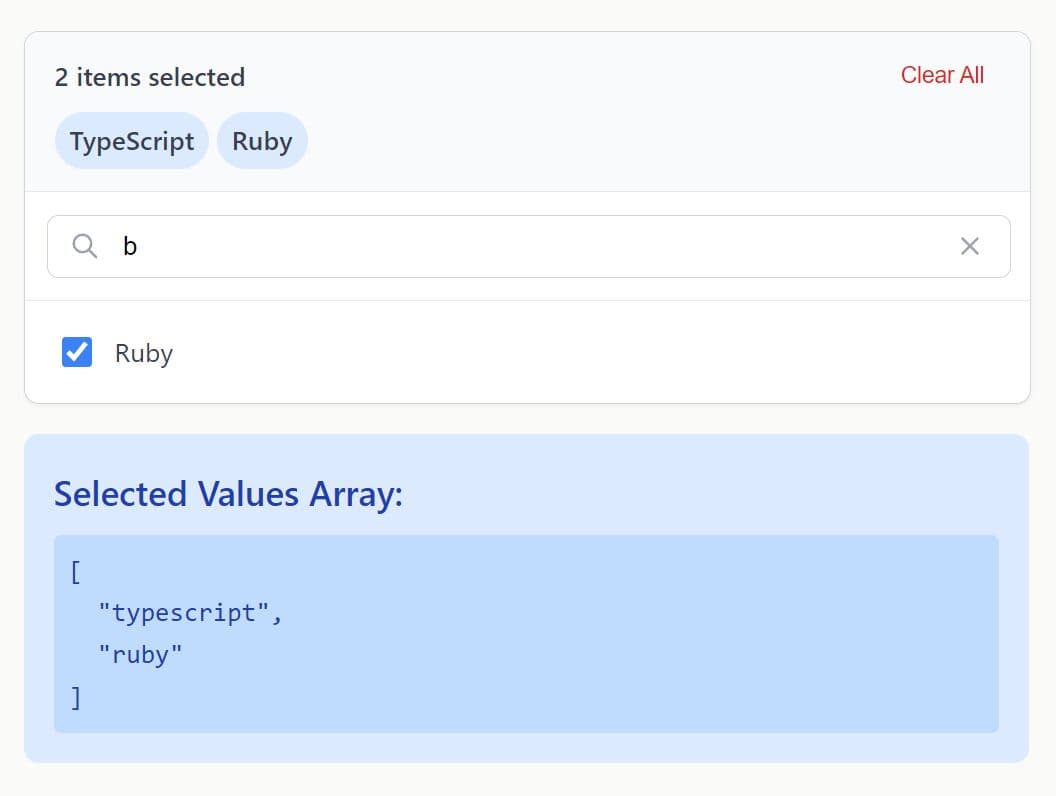
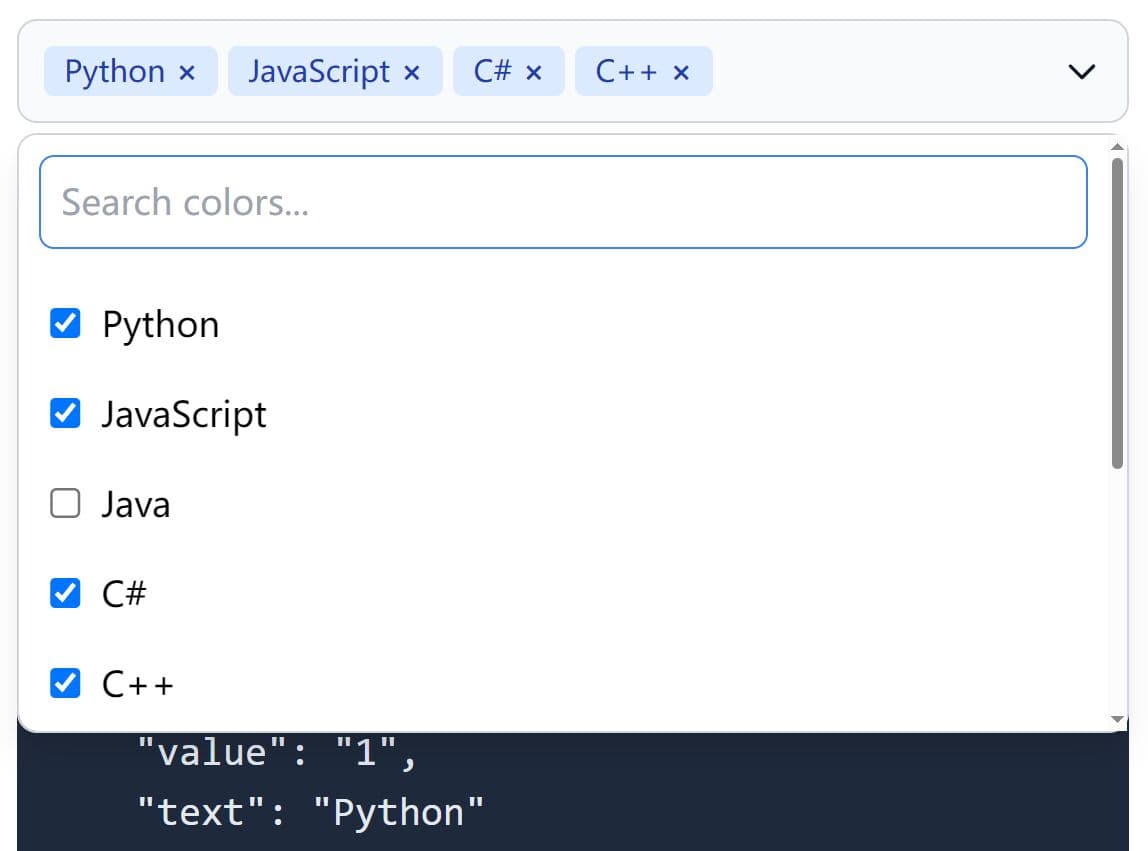
InterActiveMultiSelect is a jQuery plugin that transforms standard HTML select elements into interactive multi-select dropdowns with tag display, checkbox or radio selection modes, and optional live search filtering.
The plugin maintains synchronization with the original select element for form submission. It also works with the Bootstrap modal component so that your users can select one or more options in a modal popup.
Features:
- Tag Display: Displays selected options as removable tags.
- Dual Selection Modes: Switch between checkbox mode for multiple selections or radio mode for single selection.
- Live Search Filter: Type-to-filter functionality narrows down large option lists with instant results.
- Optgroup Support: Renders grouped options with headers that hide when search filters out all child items.
- Keyboard Navigation: Arrow keys move between items, Enter/Space toggle selections, Escape closes dropdown.
- ARIA Accessibility: Implements proper ARIA roles and attributes for screen reader compatibility.
- CSS Variable Theming: Override 20+ CSS variables to match brand colors without editing plugin files.
- ASP.NET MVC Support: Works directly with Razor markup and model binding without custom value handlers.
How To Use It:
1. Download the plugin and load the following files in your jQuery project.
<!-- Local -->
<link href="/path/to/css/InterActiveMultiSelect.min.css" rel="stylesheet">
<script src="/path/to/cdn/jquery.min.js"></script>
<script src="/path/to/js/InterActiveMultiSelect.min.js"></script>

<!-- CDN -->
<link href="https://cdn.jsdelivr.net/gh/fungus007/InterActiveMultiSelect/css/InterActiveMultiSelect.min.css" rel="stylesheet">
<script src="/path/to/cdn/jquery.min.js"></script>
<script src="https://cdn.jsdelivr.net/gh/fungus007/InterActiveMultiSelect/js/InterActiveMultiSelect.min.js"></script>
2. Create a standard HTML select element with the multiple attribute, and then add your own options with values and text labels.
<select id="skills" name="SkillIds" multiple>
  <optgroup label="Frontend">
    <option value="html">HTML</option>
    <option value="css">CSS</option>
    <option value="js">JavaScript</option>
    <option value="react">React</option>
    <option value="vue">Vue.js</option>
  </optgroup>
  <optgroup label="Backend">
    <option value="csharp">C#</option>
    <option value="python">Python</option>
    <option value="node">Node.js</option>
    <option value="php">PHP</option>
  </optgroup>
  <optgroup label="Database">
    <option value="sql">SQL Server</option>
    <option value="mysql">MySQL</option>
    <option value="mongo">MongoDB</option>
  </optgroup>
</select>
3. Call the 'interActiveMultiSelect' function after the DOM loads. The plugin hides the original select and replaces it with the interactive dropdown. The select element remains in the DOM and updates when users change selections.
$(document).ready(function() {
  $('#skills').interActiveMultiSelect();
});
4. Activate search filtering to handle longer option lists. The search box appears at the top of the dropdown.
$('#skills').interActiveMultiSelect({
  search: true,
  placeholder: 'Select skills',
  searchPlaceholder: 'Type something to filter...'
});
5. Switch to radio mode when users should select only one option. The dropdown closes automatically after selection.
$('#skills').interActiveMultiSelect({
  mode: 'radio',
});
6. Integrate InterActiveMultiSelect with Bootstrap. Initialize the plugin when the modal opens rather than on page load. This timing prevents dropdown positioning issues.
$('#editModal').on('shown.bs.modal', function() {
  $('#skills').interActiveMultiSelect({
    // options here
  });
});
7. If you add options to the select element via JavaScript after initialization, you must refresh the plugin to reflect the changes.
// Add a new option programmatically
$('#skills').append('<option value="jquery">jQuery</option>');

// Rebuild the plugin UI
$('#skills').interActiveMultiSelect('refresh');
8. All default plugin options.
$('#skills').interActiveMultiSelect({
  mode: 'checkbox',
  placeholder: 'Select',
  search: false,
  searchPlaceholder: 'Search...',
  noResultsText: 'No results found',
  selectAllText: 'Select All',
  clearText: 'Clear'
});
9. Destroy the plugin and restore the original select element.
$('#skills').interActiveMultiSelect('destroy');
10. The plugin exposes these CSS variables for theming:
:root {
  /* Button */
  --ias-btn-bg: #fff;
  --ias-btn-border: #ced4da;
  --ias-btn-color: #212529;
  --ias-btn-radius: 0.375rem;
  --ias-btn-min-height: 38px;

  /* Focus/Open Glow Effect */
  --ias-focus-border: #0d6efd;
  --ias-focus-glow: rgba(13, 110, 253, 0.35);
  --ias-focus-glow-size: 0 0 0 0.25rem;

  /* Tags */
  --ias-tag-bg: #0d6efd;
  --ias-tag-color: #fff;
  --ias-tag-radius: 0.25rem;

  /* Dropdown */
  --ias-dropdown-bg: #fff;
  --ias-dropdown-border: #ced4da;
  --ias-dropdown-shadow: 0 0.5rem 1rem rgba(0, 0, 0, 0.15);
  --ias-dropdown-radius: 0.375rem;

  /* Controls */
  --ias-controls-bg: #f8f9fa;
  --ias-controls-border: #e9ecef;
  --ias-select-all-color: #198754;
  --ias-clear-color: #dc3545;

  /* Search */
  --ias-search-bg: #fff;
  --ias-search-border: #ced4da;
  --ias-search-focus-border: #0d6efd;
  --ias-search-focus-glow: rgba(13, 110, 253, 0.15);

  /* List Items */
  --ias-item-color: #212529;
  --ias-item-hover-bg: #f8f9fa;
  --ias-item-selected-bg: #cfe2ff;
  --ias-item-selected-color: #084298;

  /* Checkbox/Radio */
  --ias-checkbox-color: #0d6efd;
  --ias-checkbox-size: 1rem;

  /* Placeholder */
  --ias-placeholder-color: #6c757d;

  /* Arrow */
  --ias-arrow-color: #6c757d;
  --ias-arrow-size: 0.75rem;
}
Related Resources:
- Select2: Advanced select replacement with AJAX support, tagging, and rich formatting options.
- Choices.js: Vanilla JavaScript select replacement with no jQuery dependency.
- Bootstrap Multiselect: jQuery plugin designed for Bootstrap framework with dropdown checkboxes and filtering.
- Slim Select: Lightweight vanilla JavaScript select replacement under 20KB with search, ajax, and single/multiple selection modes.
- 10 Best Multiple Select Plugins In JavaScript
FAQs:
Q: Why does the dropdown get cut off inside my Bootstrap modal?
A: The modal container applies overflow:hidden by default. Target the parent card or container inside the modal and set overflow:visible in your CSS to fix the clipping issue.
Q: How do I style the tags to match my brand colors?
A: Override the CSS variables --ias-tag-bg and --ias-tag-color either globally in :root or scoped to a specific select by targeting #yourSelect + .ias-wrapper.
Q: Does the plugin work with options that have special characters or HTML entities?
A: Yes. The plugin escapes values properly during rendering and synchronization. Option text displays as plain text without HTML parsing.
Q: Why do my form submissions not include the selected values?
A: Verify the select element has a name attribute. The plugin keeps the original select synchronized, so form serialization should work automatically if the name is present.
This awesome jQuery plugin is developed by fungus007. For more Advanced Usages, please check the demo page or visit the official website.