jQuery Plugin For Responsive Portfolio Gallery - WM Gridfolio
| File Size: | 1.05 MB |
|---|---|
| Views Total: | 16528 |
| Last Update: | |
| Publish Date: | |
| Official Website: | Go to website |
| License: | MIT |
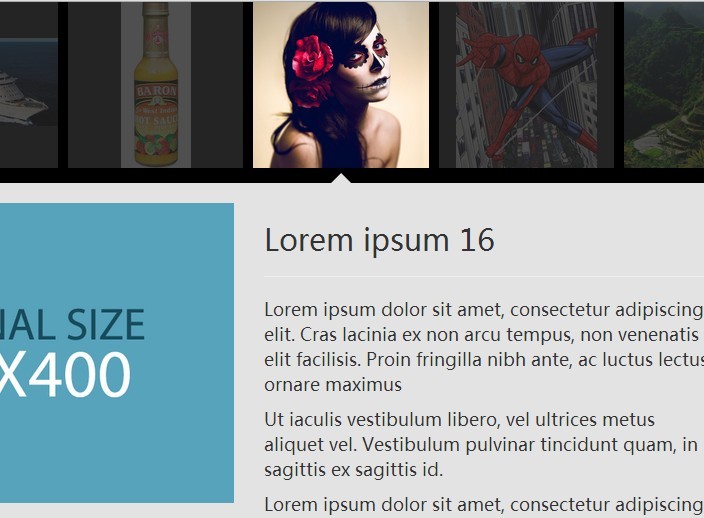
WM Gridfolio is a lightweight jQuery plugin that creates a responsive grid gallery for your portfolio website to showcase your images in an elegant way. Click on a thumbnail will slide down an info panel which displays more details about the image, a little similar to the Google Image Search.
See also:
How to use it:
1. Include the jQuery library together with jQuery WM Gridfolio plugin's script & CSS in the document.
<link rel="stylesheet" href="jquery.wm-gridfolio-1.0.min.css">

<script src="//code.jquery.com/jquery-1.11.1.min.js"></script>
<script src="jquery.wm-gridfolio-1.0.min.js"></script>
2. The markup structure to create an image gallery in a grid layout.
<div class="wmg-container demo">
  <div class="wmg-item">
    <div class="wmg-thumbnail">
      <div class="wmg-thumbnail-content">

        <!-- Thumbnail -->
        <img src="img-1.jpg" alt="image">

      </div>
      <div class="wmg-arrow"></div>
    </div>
    <div class="wmg-details"> <span class="wmg-close"></span>
      <div class="wmg-details-content">

        <!-- Image details -->
        <div class="container exemplo">
          <div class="row">
            <div class="col-md-6"> <img src="large-1.jpg" alt="image"> </div>
            <div class="col-md-6">
              <h2>Title 1</h2>
              <hr>
              <p> Description 1 </p>
              <a href="#" class="btn btn-primary btn-lg" title="Read more">Read more</a> </div>
          </div>
        </div>

      </div>
    </div>
  </div>

  <div class="wmg-item">
    <div class="wmg-thumbnail">
      <div class="wmg-thumbnail-content">

        <!-- exemplo de conteudo para thumbnail -->
        <img src="img-2.jpg" alt="image">
        <!-- fim do exemplo -->

      </div>
      <div class="wmg-arrow"></div>
    </div>
    <div class="wmg-details"> <span class="wmg-close"></span>
      <div class="wmg-details-content">

        <!-- exemplo de coteúdo para detail -->
        <div class="container exemplo">
          <div class="row">
            <div class="col-md-6"> <img src="large-2.jpg" alt="image"> </div>
            <div class="col-md-6">
              <h2>Title 2</h2>
              <hr>
              <p> Description 2 </p>
              <a href="#" class="btn btn-primary btn-lg" title="Read more">Read more</a> </div>
          </div>
        </div>

      </div>
    </div>
  </div>

  <div class="wmg-item">
    <div class="wmg-thumbnail">
      <div class="wmg-thumbnail-content">

        <img src="img-3.jpg" alt="image">

      </div>
      <div class="wmg-arrow"></div>
    </div>
    <div class="wmg-details"> <span class="wmg-close"></span>
      <div class="wmg-details-content">

        <div class="container exemplo">
          <div class="row">
            <div class="col-md-6"> <img src="large-3.jpg" alt="image"> </div>
            <div class="col-md-6">
              <h2>Title 3</h2>
              <hr>
              <p> Description 3 </p>
              <a href="#" class="btn btn-primary btn-lg" title="Read more">Read more</a> </div>
          </div>
        </div>

      </div>
    </div>
  </div>

</div>
3. Initialize the image gallery with one JS call.
$(document).ready(function(){
  $('.demo').WMGridfolio();
});
4. Default options.
$fn.WMGridfolio({
selectors : {
  item            : 'wmg-item',
  thumbnail       : 'wmg-thumbnail',
  details         : 'wmg-details',
  close           : 'wmg-close',
  arrow           : 'wmg-arrow'
},
thumbnail : {
  columns : 6,
  minSize : 100,
  margin   : 5
},
details : {
  minHeight : 400,
  speed  : 350,
  full_w : false
},
config : {
  open          : 'open',
  openToTop     : true,
  hasImg        : true,
  keepOpen      : false,
  onlyThumb     : false
},
callbacks : {
  CB_LoadGrid     : false,
  CB_ResizeGrid   : false,
  CB_OpenDetail   : false,
  CB_CloseDetail  : false,
  CB_CloseAll     : false
}
});
Change log:
2015-03-24
- add options keepOpen and onlyThumb
This awesome jQuery plugin is developed by welisonmenezes. For more Advanced Usages, please check the demo page or visit the official website.