jQuery Image Gallery with Lightbox, Carousel, and Grid - VNS.Gallery
| File Size: | 57.9 KB |
|---|---|
| Views Total: | 672 |
| Last Update: | |
| Publish Date: | |
| Official Website: | Go to website |
| License: | MIT |
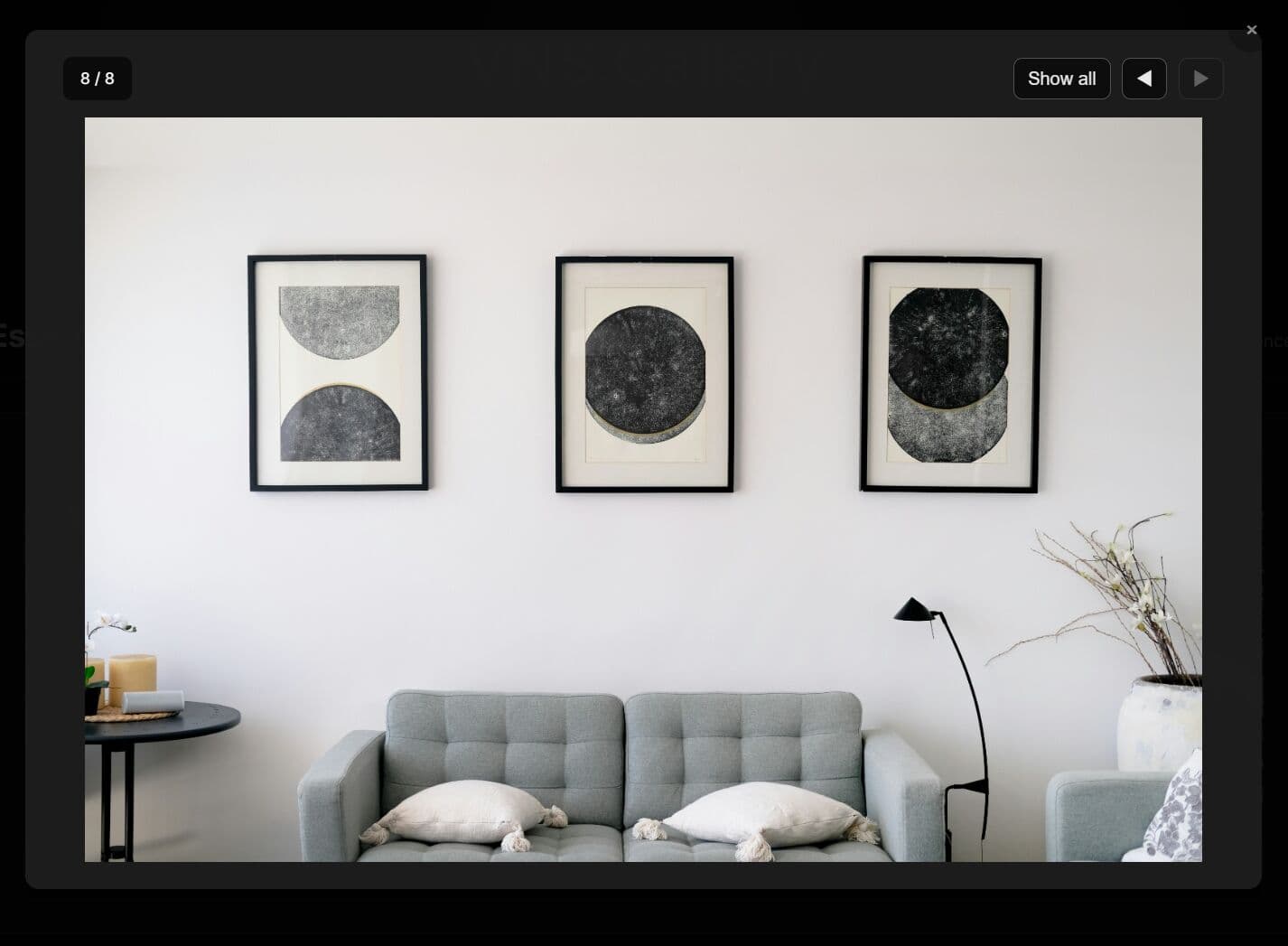
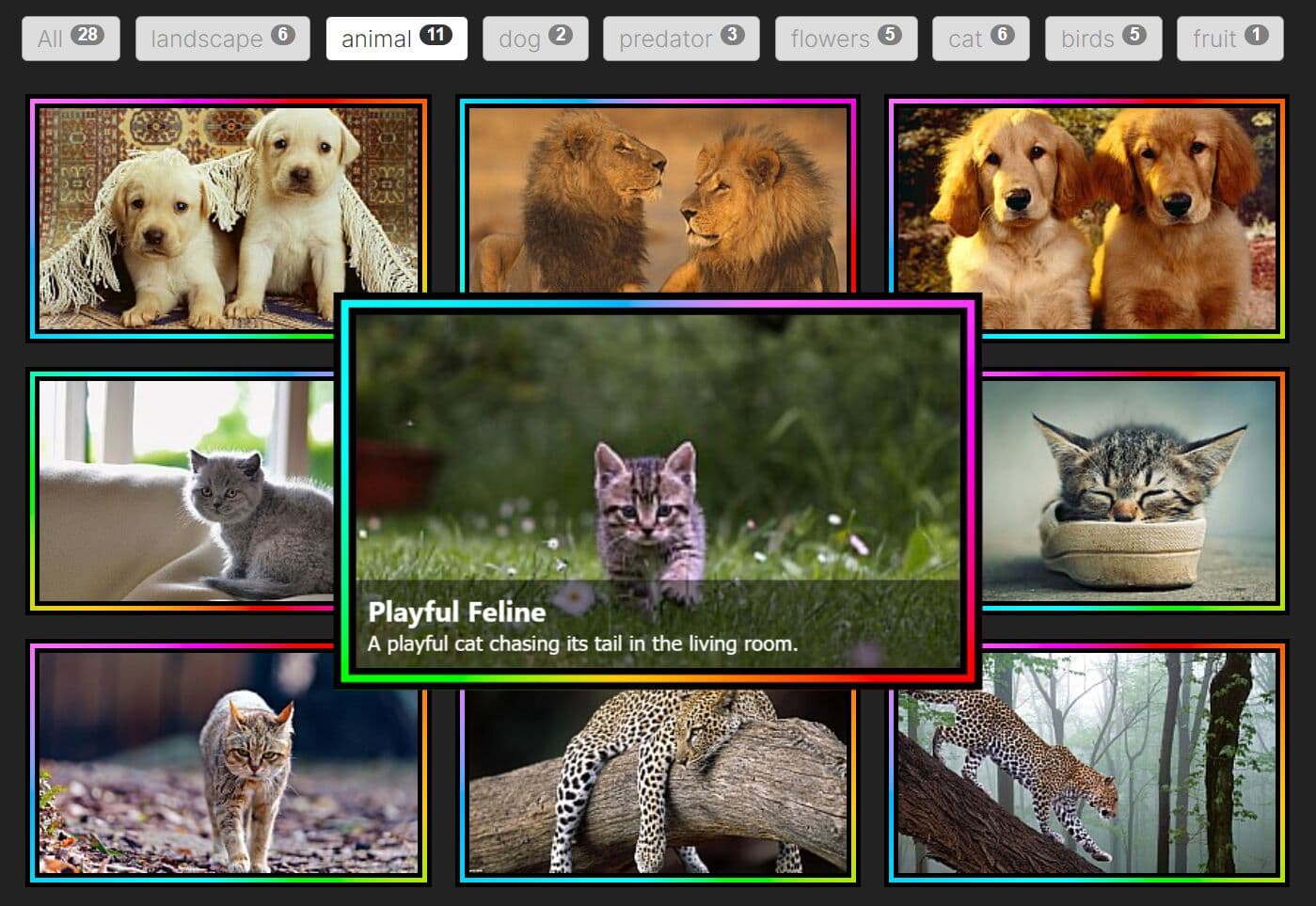
VNS.Gallery is a jQuery gallery plugin that creates responsive, touch-enabled photo galleries with carousel, lightbox, and image grid support.
Features:
- Dual Layout Modes: Switch between carousel navigation or static grid display.
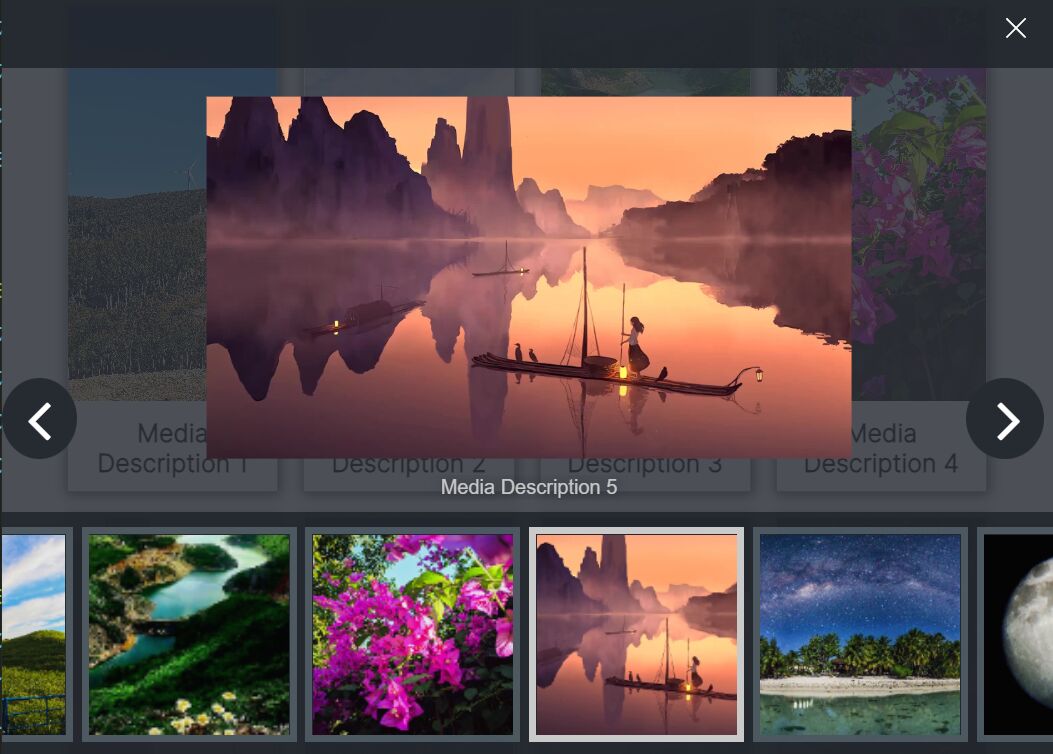
- Gallery Lightbox: Opens full-size images in an overlay with grid or single-image views.
- Performance Optimization: Uses
data-fullsizeattribute to load small thumbnails initially. Full-size images load only when viewed. - Responsive Design: Configure different column counts per breakpoint.
- Keyboard Navigation: Arrow keys navigate images, Escape closes the modal.
- Mobile-friendly: Detects swipe distance to trigger navigation.
- Fully Customizable: Over 30 configuration options available.
See It In Action:
How To Use It:
1. Link the CSS file in the <head> tag. Link jQuery and the plugin script at the end of your <body> tag.
<!-- Load jQuery first -->
<script src="/path/to/cdn/jquery.min.js"></script>

<!-- Load VNS.Gallery CSS and JS -->
<link rel="stylesheet" href="dist/vns-gallery.min.css">
<script src="dist/vns-gallery.min.js"></script>
2. Create a container element with your images inside. Each image needs a src attribute for the thumbnail and an optional data-fullsize attribute for the high-resolution version.
<div class="my-gallery">
  <!-- Image 1: Thumbnail in src, HD version in data-fullsize -->
  <img src="img/thumbs/photo-01.jpg"
       data-fullsize="img/full/photo-01.jpg"
       alt="Mountain View">
  <!-- Image 2 -->
  <img src="img/thumbs/photo-02.jpg"
       data-fullsize="img/full/photo-02.jpg"
       alt="River Side">
  <!-- Image 3 -->
  <img src="img/thumbs/photo-03.jpg"
       data-fullsize="img/full/photo-03.jpg"
       alt="Forest Path">
  ... more images here ...
</div>
3. Call vnsGallery() on your container element. This creates a responsive carousel with four columns by default. You can click any image to open the lightbox modal.
$(document).ready(function() {
  // Initialize with default settings
  $('.gallery').vnsGallery();
});
4. Configure your gallery with the following options.
$('.gallery').vnsGallery({

  // Use carousel navigation (if false, shows static grid)
  useCarousel: true,

  // Enable looping through images
  loop: false,

  // Number of items to step (null = auto based on visible items)
  step: null,

  // Show "See all" button
  showAllButton: true,

  // Static grid options (when useCarousel is false)

  // Max images to show initially (null = show all)
  maxImages: null,

  // Show "..." indicator when images are hidden
  showMoreIndicator: true,

  // Action on click: 'modal' (open gallery) or 'load' (load more images)
  moreIndicatorAction: 'modal',

  // Text for the more indicator
  moreIndicatorText: '...',

  // Show prev/next arrows in lightbox
  showNavigation: true,

  // Show image counter
  showCounter: true,

  // Show close (X) button in grid view
  showCloseButtonGrid: true,

  // Show close (X) button in single view
  showCloseButtonSingle: true,

  // Enable keyboard navigation
  enableKeyboard: true,

  // Enable mouse/touch drag on carousel
  enableDrag: true,

  // Minimum drag distance (in pixels) to trigger navigation
  dragThreshold: 50,

  // Enable hover effect on thumbnails and more indicator
  hoverEffect: false,

  // Show captions if available
  captions: false,

  // Element to get caption from: 'img' or 'self' (the container)
  captionSelector: 'img',

  // How to get caption: 'attr', 'data', or 'text'
  captionType: 'attr',

  // Attribute name to get caption from (e.g., 'title', 'alt')
  captionsData: 'alt',

  // Caption position: 'top-left', 'top-center', 'top-right', 'bottom-left', 'bottom-center', 'bottom-right',
  captionPosition: 'outside-center', 'outside-left', 'outside-center', 'outside-right'

  // Delay before showing caption (in ms)
  captionDelay: 0,

  // Text labels
  showAllText: 'Show all',
  prevText: '◀',
  nextText: '▶',
  thumbPrevText: '‹',
  thumbNextText: '›',

  // Number of columns in front carousel (null = use responsive default: 2/3/4)
  columns: null,

  // Number of columns in modal grid view
  modalColumns: 4,

  // Width of modal in single view (e.g., '80vw', '1200px', '90%')
  modalWidth: '80vw',

  // Responsive option (like Owl Carousel)
  // Define different settings for different screen widths
  // Set to null to disable, or provide breakpoint object
  responsive: null,

});
5. The responsive option accepts an object where keys are breakpoint widths in pixels. Each breakpoint can override any option.
$('.gallery').vnsGallery({

  // Breakpoint overrides
  responsive: {
    0: { // Mobile devices
      columns: 2,
      modalColumns: 2,
      showAllButton: false
    },
    768: { // Tablets
      columns: 4,
      modalColumns: 3
    },
    1024: { // Desktops
      columns: 6,
      modalColumns: 4
    }
  }

});
6. Callback functions.
$('.gallery').vnsGallery({

  onShow: function() {}, // Before lightbox opens
  onShown: function() {}, // After lightbox opens
  onChange: function() {}, // Before image changes
  onChanged: function() {}, // After image changes
  onClose: function() {}, // Before lightbox closes
  onClosed: function() {}, // After lightbox closes
  onNext: function() {}, // Before next image
  onNextDone: function() {}, // After next image
  onPrev: function() {}, // Before previous image
  onPrevDone: function() {}, // After previous image
  onError: function() {} // On image load error

});
7. API methods.
// Initialize and store reference
var gallery = $('.gallery').vnsGallery();

// Open the gallery modal in grid view mode
gallery.open();

// Open gallery to a specific image by index (zero-based)
gallery.open(2);  // Opens to third image

// Close the gallery modal
gallery.close();

// Navigate to next image in the sequence
gallery.next();

// Navigate to previous image in the sequence
gallery.prev();

// Destroy the gallery instance and remove all event listeners
gallery.destroy();

// Refresh gallery to detect new images or configuration changes
gallery.refresh();
8. Event handlers.
// Fires when the gallery instance initializes
$('.gallery').on('init', function(e) {
  console.log('Gallery initialized');
});

// Fires before the modal opens
$('.gallery').on('show', function(e) {
  console.log('Modal opening...');
  // Pause autoplay videos, save scroll position, etc.
});

// Fires after the modal fully opens
$('.gallery').on('shown', function(e) {
  console.log('Modal is now visible');
  // Track analytics, set focus, etc.
});

// Fires before the active image changes
$('.gallery').on('change', function(e, index) {
  console.log('About to change to image:', index);
});

// Fires after the image change completes
$('.gallery').on('changed', function(e, index, imageElement) {
  console.log('Now showing image:', index);
  console.log('Image element:', imageElement);
  // Update custom UI, load related data, etc.
});

// Fires before navigating to next image
$('.gallery').on('next', function(e, currentIndex) {
  console.log('Moving forward from:', currentIndex);
});

// Fires after next navigation completes
$('.gallery').on('nextDone', function(e, newIndex) {
  console.log('Arrived at:', newIndex);
});

// Fires before navigating to previous image
$('.gallery').on('prev', function(e, currentIndex) {
  console.log('Moving backward from:', currentIndex);
});

// Fires after previous navigation completes
$('.gallery').on('prevDone', function(e, newIndex) {
  console.log('Arrived at:', newIndex);
});

// Fires before the modal closes
$('.gallery').on('close', function(e) {
  console.log('Modal closing...');
  // Resume videos, restore scroll, etc.
});

// Fires after the modal fully closes
$('.gallery').on('closed', function(e) {
  console.log('Modal closed completely');
  // Clean up temporary states
});
Alternatives:
- Lightbox2: The original lightbox script focused on simplicity.
- GLightbox: A modern vanilla JavaScript lightbox that works without jQuery.
- PhotoSwipe: A JavaScript gallery targeting mobile devices specifically.
- 10 Best Lightbox Gallery Plugins In JavaScript & CSS
FAQs:
Q: How do I dynamically add images to an existing gallery?
A: Append new <img> elements to your gallery container using jQuery or vanilla JavaScript. After adding images, call the refresh() method on your gallery instance to detect and integrate the new images.
Q: Can I use this plugin with images loaded via AJAX?
A: Yes. Load your images asynchronously and insert them into the gallery container. Call gallery.refresh() after the AJAX request completes.
Q: The modal opens but images appear broken. What causes this?
A: Check that your data-fullsize paths are correct relative to your HTML file. The browser console will show 404 errors for missing images. You can also verify paths by copying the data-fullsize URL and pasting it directly in your browser. If thumbnails load but full-size images fail, the issue is with the data-fullsize paths specifically.
Q: How do I disable the carousel and show a static grid instead?
A: Set useCarousel: false in your options object. You can then use maxImages to limit initial image count and showMoreIndicator: true to display a "load more" indicator. This converts the gallery from carousel navigation to a traditional grid layout with optional pagination.
Q: Can I trigger the gallery to open from custom JavaScript code?
A: Yes. Store the gallery instance when you initialize: var gallery = $('.gallery').vnsGallery(). Then call gallery.open() to show the modal in grid view, or gallery.open(index) to open directly to a specific image.
Changelog:
v1.0.8 (2026-03-07)
- Touch events are now bound directly to the image element only
- Added preventDefault() on the correct native touch event to block browser scroll during horizontal swipe
- Added touch-action: none on image wrapper and image, and overscroll-behavior: contain on the open modal
- Bugfixes
v1.0.6 (2026-03-07)
- update
v1.0.5 (2026-03-06)
- seamless infinite loop for thumbnail carousel in loop mode
v1.0.4 (2026-02-11)
- fix: Grid layout issues and add debugging logs
This awesome jQuery plugin is developed by schlagerdk. For more Advanced Usages, please check the demo page or visit the official website.
- Prev: Customizable & Filterable Gallery In jQuery - tabX
- Next: None