Media Browser Modal for File Uploaders - jQuery Media
| File Size: | 33.9 KB |
|---|---|
| Views Total: | 155 |
| Last Update: | |
| Publish Date: | |
| Official Website: | Go to website |
| License: | MIT |
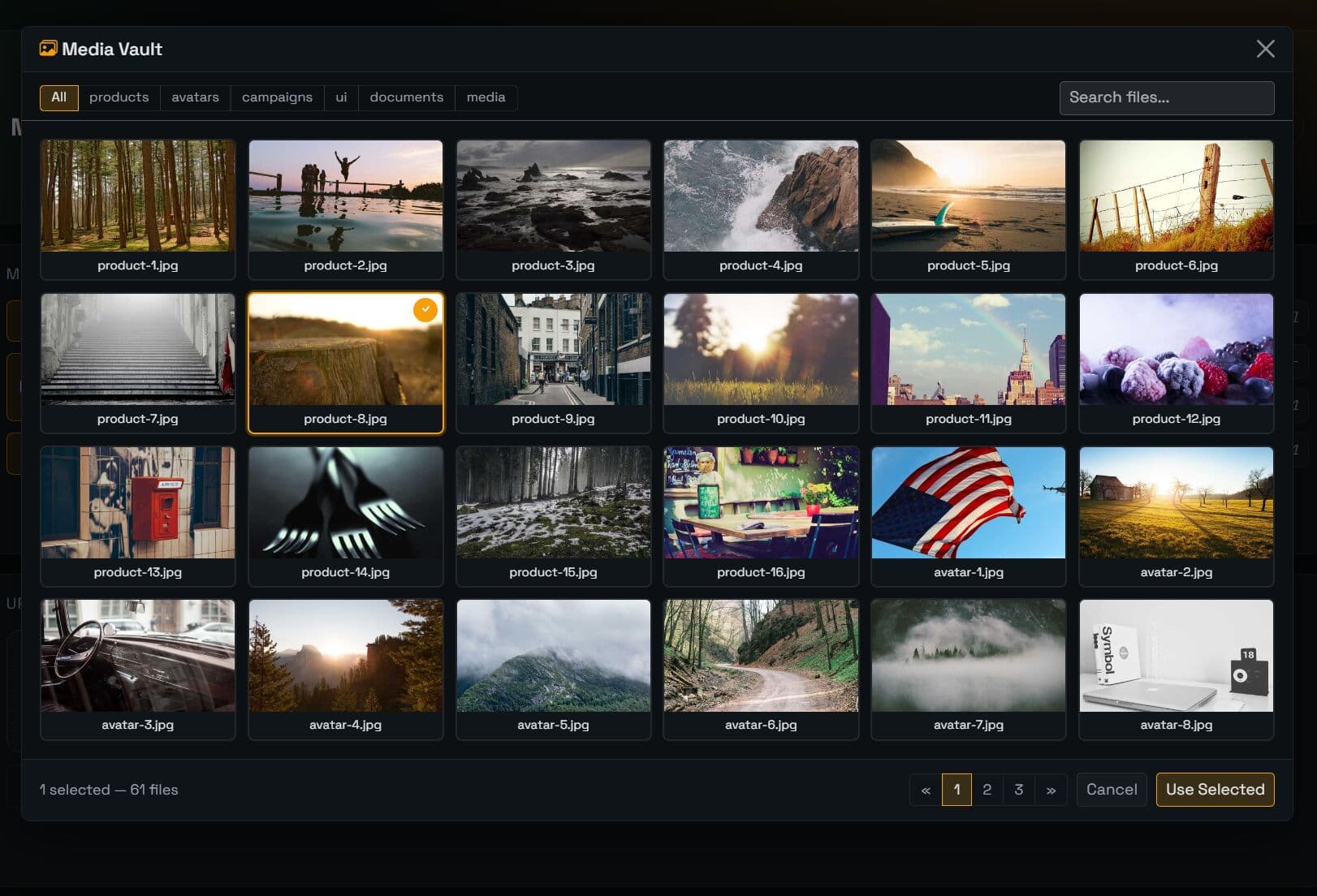
jQuery Media Library is a modal plugin that adds a full media browser to jQuery-based file uploaders. It presents previously uploaded files in a searchable, paginated grid and returns the user's selection through a simple callback.
You set one global API endpoint, call MediaLibrary.open(), and the rest is handled automatically. It's ideal for admin panels and CMS where users need to locate and reuse existing assets at speed.
Features:
- Responsive CSS Grid layout with lazy-loaded image thumbnails and Bootstrap Icons fallbacks for PDFs, spreadsheets, video files, and other non-image types.
- Single-select or multi-select mode.
- Live search input with a 300ms debounce and folder-tab filtering for directory-level scoping.
- Backend-agnostic JSON API contract that works with PHP, Node.js, Python, Go, or any stack that returns HTTP JSON responses.
- Full localization support.
- CSS override system using
ml-prefixed class names for grid column count, thumbnail height, and selection highlight color. - Based on jQuery 3+ and Bootstrap 5.
Use Cases:
- E-commerce platforms where admins reuse the same product placeholder images across multiple listings.
- Content management systems requiring a centralized repository for blog post thumbnails and document attachments.
- User profile settings pages where members select pre-approved default avatars from a server directory.
- Custom dashboard interfaces needing a quick way to attach existing server-side PDFs to new email campaigns.
How to use it:
1. Load Bootstrap 5, Bootstrap Icons, jQuery, and the plugin in your HTML document.
<!-- jQuery + Bootstrap -->
<link rel="stylesheet" href="/path/to/cdn/bootstrap.min.css" />
<script src="/path/to/cdn/jquery.min.js"></script>
<script src="/path/to/cdn/bootstrap.bundle.min.js"></script>

<!-- Bootstrap Icons -->
<link href="/path/to/cdn/bootstrap-icons.min.css" rel="stylesheet">

<!-- jQuery Media Library -->
<script src="/path/to/dist/media-library.min.js"></script>
2. You must tell the plugin where to fetch the file list. Set the global API URL before opening the modal.
MediaLibrary.defaults.apiUrl = '/api/files/list';
3. Trigger the modal manually from any button click.
$('#open-media-btn').on('click', function () {
  MediaLibrary.open({
    multiple: true,
    onSelect: function (files) {
      // files is an array of { url, name } objects
      // files.length === 1 in single-select mode, >= 1 in multi-select
      files.forEach(function (file) {
        console.log('URL:', file.url);
        console.log('Name:', file.name);
      });
    }
  });
});
3. Your server must respond to a GET request with a specific JSON structure. The plugin sends folder, search, and page parameters in the query string.
url(string, required): Public-facing URL the browser can resolve. This value is passed to theonSelectcallback.name(string, required): Filename shown in the grid caption and hover tooltip.type(string):"image"renders a lazy-loaded<img>thumbnail. Any other value renders a Bootstrap Icon matched to the file extension.size(number): File size in bytes. The plugin formats and displays this in the hover tooltip.modified(string): ISO date string shown in the tooltip alongside the file size.
{
  "files": [
    {
      "url": "/uploads/graphics/company-logo.png",
      "name": "company-logo.png",
      "type": "image",
      "size": 84320,
      "modified": "2026-01-10"
    },
    {
      "url": "/uploads/graphics/brand-guide.pdf",
      "name": "brand-guide.pdf",
      "type": "document",
      "size": 2097152,
      "modified": "2026-01-08"
    }
  ],
  "folders": ["graphics", "avatars", "attachments"],
  "current_folder": "graphics",
  "total": 64,
  "page": 2,
  "pages": 3
}
4. Available configuration options. Set these on MediaLibrary.defaults once before any .open() call to apply them globally. Pass the same keys directly into .open(options) to override them for a single call.
apiUrl(string): Backend endpoint URL. The plugin sends GET requests here withfolder,search, andpageparameters appended.perPage(number): Files per page. Default:48.title(string): Modal header title text. Default:'Media Library'.selectText(string): Confirm button label. Default:'Select'.cancelText(string): Dismiss button label. Default:'Cancel'.allText(string): Label for the "show all folders" tab. Default:'All'.searchPlaceholder(string): Placeholder text in the search input. Default:'Search files...'.emptyText(string): Message shown when no files match the query. Default:'No files found'.errorText(string): Message shown when the API request returns an error. Default:'Error loading files'.fileInfoText(string): Footer text showing the total file count. Supports the{count}token. Default:'{count} files'.selectedInfoText(string): Footer text shown when files are selected. Supports{selected}and{count}tokens. Default:'{selected} selected — {count} files'.uploaderButtonText(string): Label on the auto-injected uploader button. Default:'Media Library'.uploaderButtonIcon(string): CSS class for the icon inside the auto-injected button. Default:'bi bi-images'. Any icon library that renders through CSS class names works here.ajaxHeaders(object): Key-value pairs merged into every AJAX request header. Use this for CSRF tokens or Authorization headers. Default:{}.ajaxData(object): Key-value pairs merged into every AJAX request as extra query parameters. Default:{}.
MediaLibrary.defaults.apiUrl        = '/admin/assets/browse';
MediaLibrary.defaults.title         = 'Asset Browser';
MediaLibrary.defaults.perPage       = 24;
MediaLibrary.defaults.selectText    = 'Use This File';
MediaLibrary.defaults.cancelText    = 'Close';
MediaLibrary.defaults.ajaxHeaders   = {
  'X-CSRF-TOKEN': $('meta[name="csrf-token"]').attr('content')
};
5. API methods.
// Open in single-select mode, pre-filtered to the "banners" folder.
// The onSelect callback receives an array with exactly one file object.
MediaLibrary.open({
  multiple: false,
  folder: 'banners',
  onSelect: function (files) {
    // Write the selected URL into an image tag and a hidden input
    $('#hero-preview').attr('src', files[0].url);
    $('#hero-url-field').val(files[0].url);
  }
});

// Open in multi-select mode with a per-call API override and extra params.
// The apiUrl here takes precedence over MediaLibrary.defaults.apiUrl for this call only.
MediaLibrary.open({
  multiple: true,
  apiUrl:      '/api/shared-assets',
  ajaxData:    { project_id: 7 },              // Appended to the GET query string
  ajaxHeaders: { Authorization: 'Bearer eyJ...' },  // Merged into request headers
  onSelect: function (files) {
    // Loop through the selection and append each image to a gallery container
    files.forEach(function (file) {
      var $img = $('<img>').attr({ src: file.url, alt: file.name });
      $('#asset-gallery').append($img);
    });
  }
});
6. Any jQuery uploader plugin that fires uploader-init on its <input> element gets the Media Library button injected automatically.
// This block runs automatically when an uploader fires 'uploader-init'.
// The plugin listens at the document level and handles button injection
// internally. The code below is for reference only.

// For uploaders that do not fire 'uploader-init', wire the modal manually:
$('#product-image-input').on('click', '.custom-browse-btn', function () {
  MediaLibrary.open({
    multiple: true,
    onSelect: function (files) {
      // Collect selected URLs and append them to the input as a comma-separated list
      var existing   = $('#product-image-input').val();
      var newUrls    = files.map(function (f) { return f.url; }).join(',');
      var combined   = existing ? existing + ',' + newUrls : newUrls;
      $('#product-image-input').val(combined);
    }
  });
});
7. Override all user-visible strings through MediaLibrary.defaults:
// French localization example
// Set before any .open() call
MediaLibrary.defaults.title              = 'Médiathèque';
MediaLibrary.defaults.selectText         = 'Choisir';
MediaLibrary.defaults.cancelText         = 'Annuler';
MediaLibrary.defaults.allText            = 'Tout';
MediaLibrary.defaults.searchPlaceholder  = 'Rechercher des fichiers...';
MediaLibrary.defaults.emptyText          = 'Aucun fichier trouvé';
MediaLibrary.defaults.errorText          = 'Erreur de chargement';
MediaLibrary.defaults.fileInfoText       = '{count} fichiers';
MediaLibrary.defaults.selectedInfoText   = '{selected} sélectionné(s) — {count} fichiers';
MediaLibrary.defaults.uploaderButtonText = 'Médiathèque';
8. Override all user-visible strings through MediaLibrary.defaults:
// French localization example
// Set before any .open() call
MediaLibrary.defaults.title              = 'Médiathèque';
MediaLibrary.defaults.selectText         = 'Choisir';
MediaLibrary.defaults.cancelText         = 'Annuler';
MediaLibrary.defaults.allText            = 'Tout';
MediaLibrary.defaults.searchPlaceholder  = 'Rechercher des fichiers...';
MediaLibrary.defaults.emptyText          = 'Aucun fichier trouvé';
MediaLibrary.defaults.errorText          = 'Erreur de chargement';
MediaLibrary.defaults.fileInfoText       = '{count} fichiers';
MediaLibrary.defaults.selectedInfoText   = '{selected} sélectionné(s) — {count} fichiers';
MediaLibrary.defaults.uploaderButtonText = 'Médiathèque';
9. Every element in the modal carries a CSS class prefixed with ml-. Add overrides after the plugin script tag loads:
/* Swap the selection highlight to a custom brand color */
.ml-item.selected {
  border-color: #c0392b;
  box-shadow: 0 0 0 2px rgba(192, 57, 43, 0.3);
}
.ml-item .ml-check {
  background: #c0392b;
}

/* Taller thumbnails for image-heavy libraries */
.ml-item-img {
  height: 140px;
}

/* Four-column grid on large screens */
.ml-grid {
  grid-template-columns: repeat(4, 1fr);
}
This awesome jQuery plugin is developed by raca12. For more Advanced Usages, please check the demo page or visit the official website.